Observe and troubleshoot
Packet capture
Start a capture on a link, watch it run, stop it, and download a PCAP - from the Capture Center or the in-lab Captures dock.
GUI walkthrough for capturing packets on lab links. For link delay/loss see Link inspector and impairment. For console steps see Operate and consoles.
Goal
Start a capture on a link, watch it run, stop it, and download a PCAP - from the Capture Center or the in-lab Captures dock.
Why Packet Capture exists
Consoles show control plane. Capture shows what actually crossed the wire so you can prove failover, ACL drops, or demo Wireshark without leaving VEX-NX.
GUI tutorial
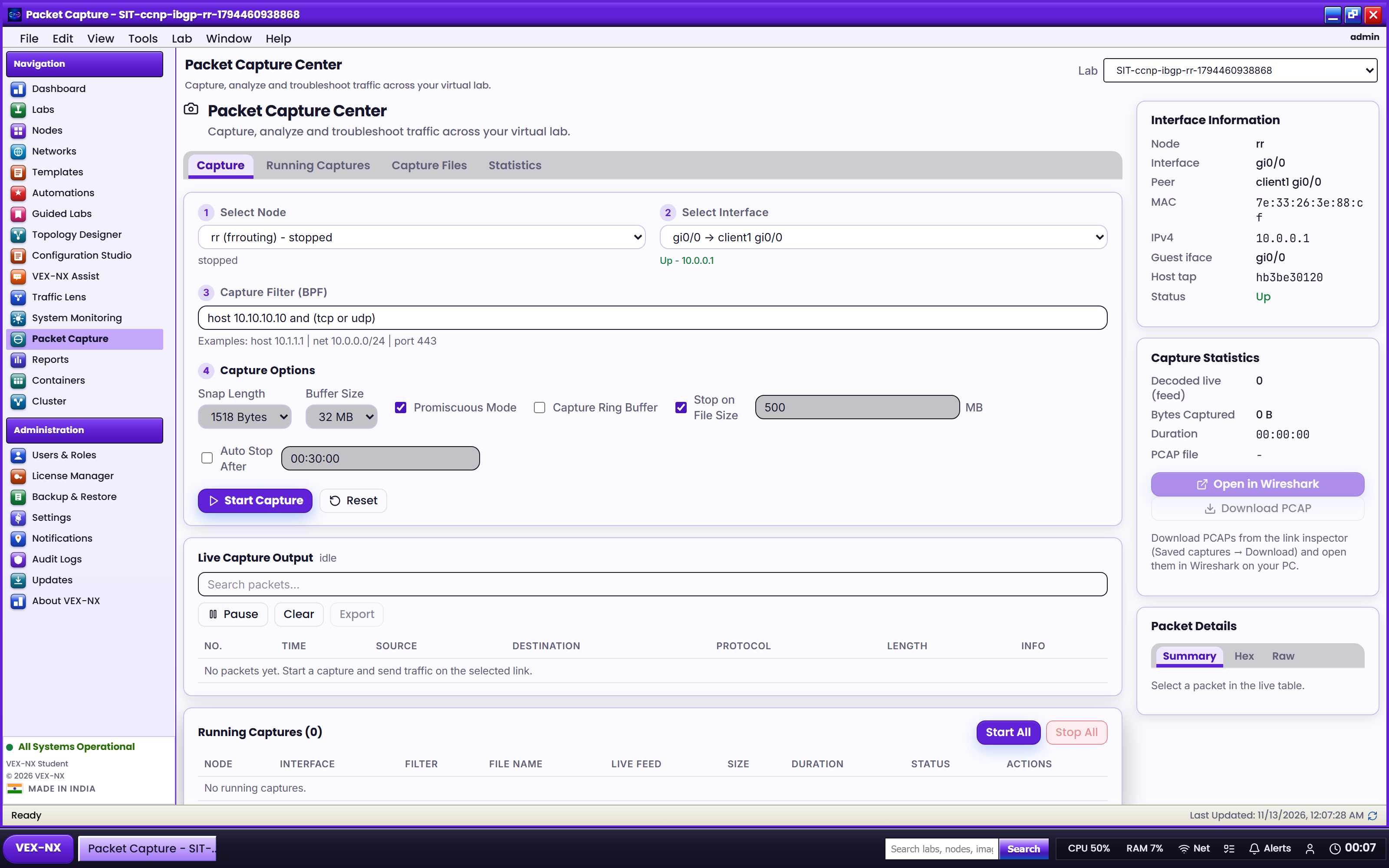
Step 1 - Open Packet Capture Center
- Sidebar -> Packet Capture (route
/capture) - Confirm you see the capture studio (labs / jobs list)
| What you see | Capture Center workspace |
| Expected | You can pick a lab and start or review jobs |
Step 2 - Prefer in-lab Captures dock (same jobs)
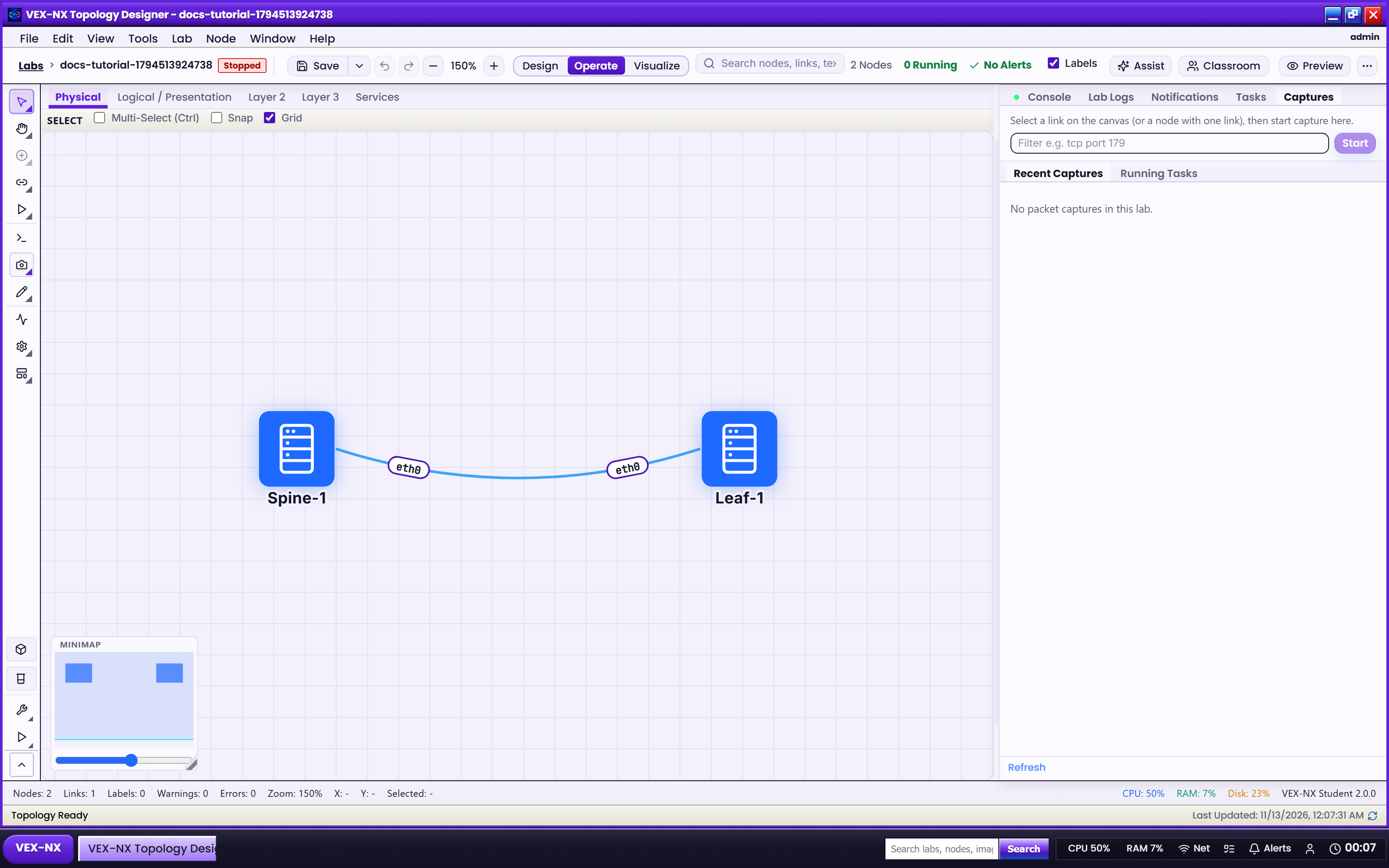
- Open the lab -> Operate
- Select a link on the canvas (or a node with one link)
- Click Capture / Captures on the toolbar or More menu
- The bottom Captures dock opens (you stay in the lab - no forced navigation away)
| What you see | Captures dock with Start / filter |
| Expected | Dock is ready; Start is enabled when a link is selected |
Step 3 - Start capture
- Optional: set a BPF-style filter if the UI offers one
- Click Start
- Wait for status running
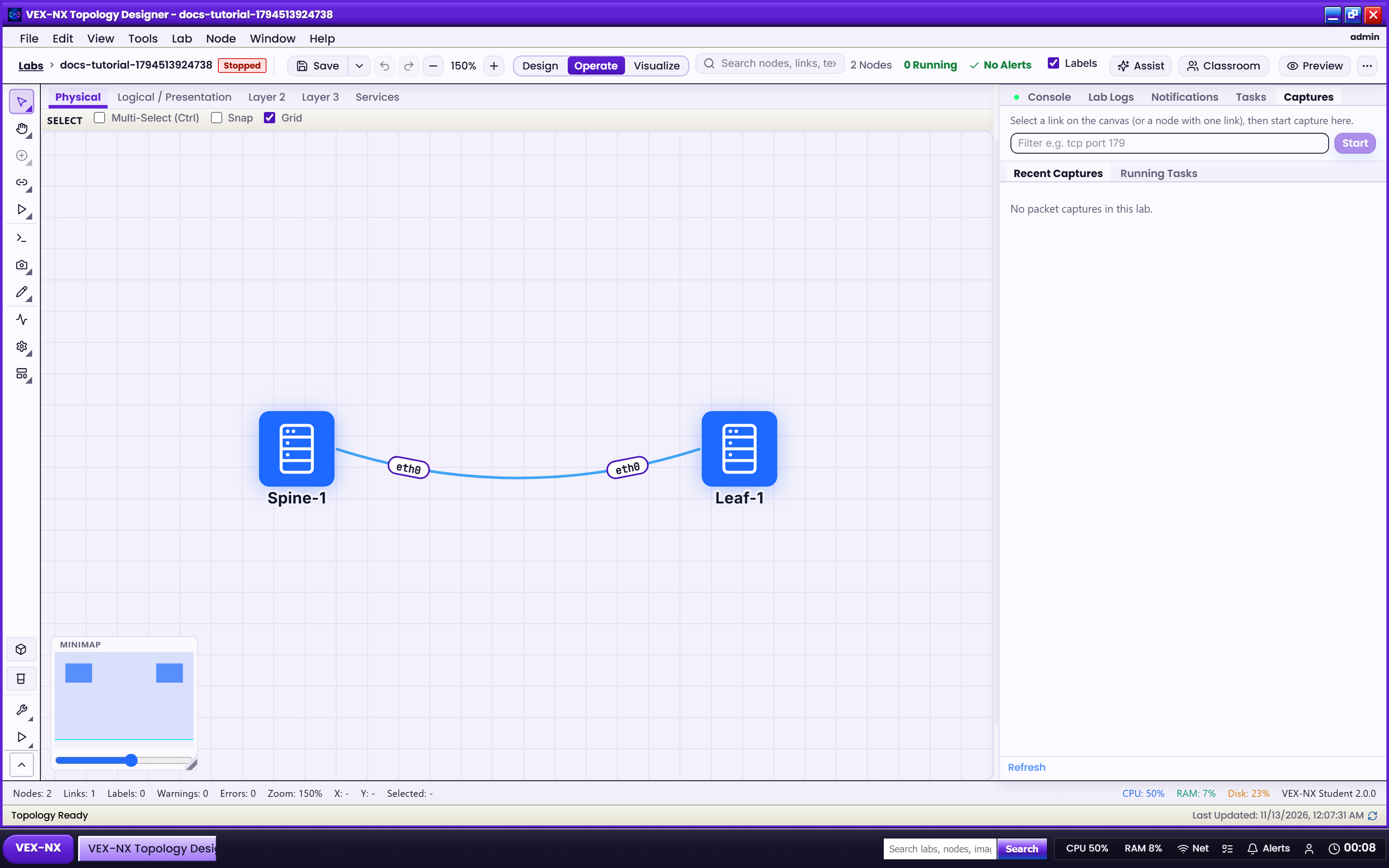
| What you see | Running job in the Captures dock |
| Expected | Toast or status shows capture started |
Step 4 - Generate traffic (so the PCAP is useful)
- Open consoles on both ends (Operate and consoles)
- Ping or run a small flow across the captured link
- Or use Traffic Lens sample / live traffic (Traffic Lens)
Step 5 - Stop and download
- In the Captures dock, click Stop
- Click Download for the PCAP
- Open in Wireshark on your PC if needed
| What you see | Stopped job with download action |
| Expected | A .pcap file downloads |
Step 6 - Same capture from Link Inspector
- Click the link -> open the link dock
- Open the Capture tab
- Start / Stop from there - same session model as the Captures dock
Details: Link inspector and impairment.
Expected result
- Capture jobs appear in the dock and Capture Center
- Download yields a PCAP you can open externally
- Stopping the lab does not replace explicit Stop on the job (always Stop before you leave)
If it fails
- Start disabled -> select a link first (or a node that has exactly one link)
- Empty PCAP -> no traffic; ping across the path while capture runs
- 403 / missing -> edition or permission; check Features
- Looking for Capture Center mid-lab -> use the in-lab Captures dock; Center is for studio overview
Related
- Operate and consoles
- Traffic Lens
- Link inspector and impairment
- Visual Feature Atlas - Operate