Build labs
Import Lab
Restore a lab exported from **another VEX-NX** appliance as `*-vex-nx-lab.zip`.
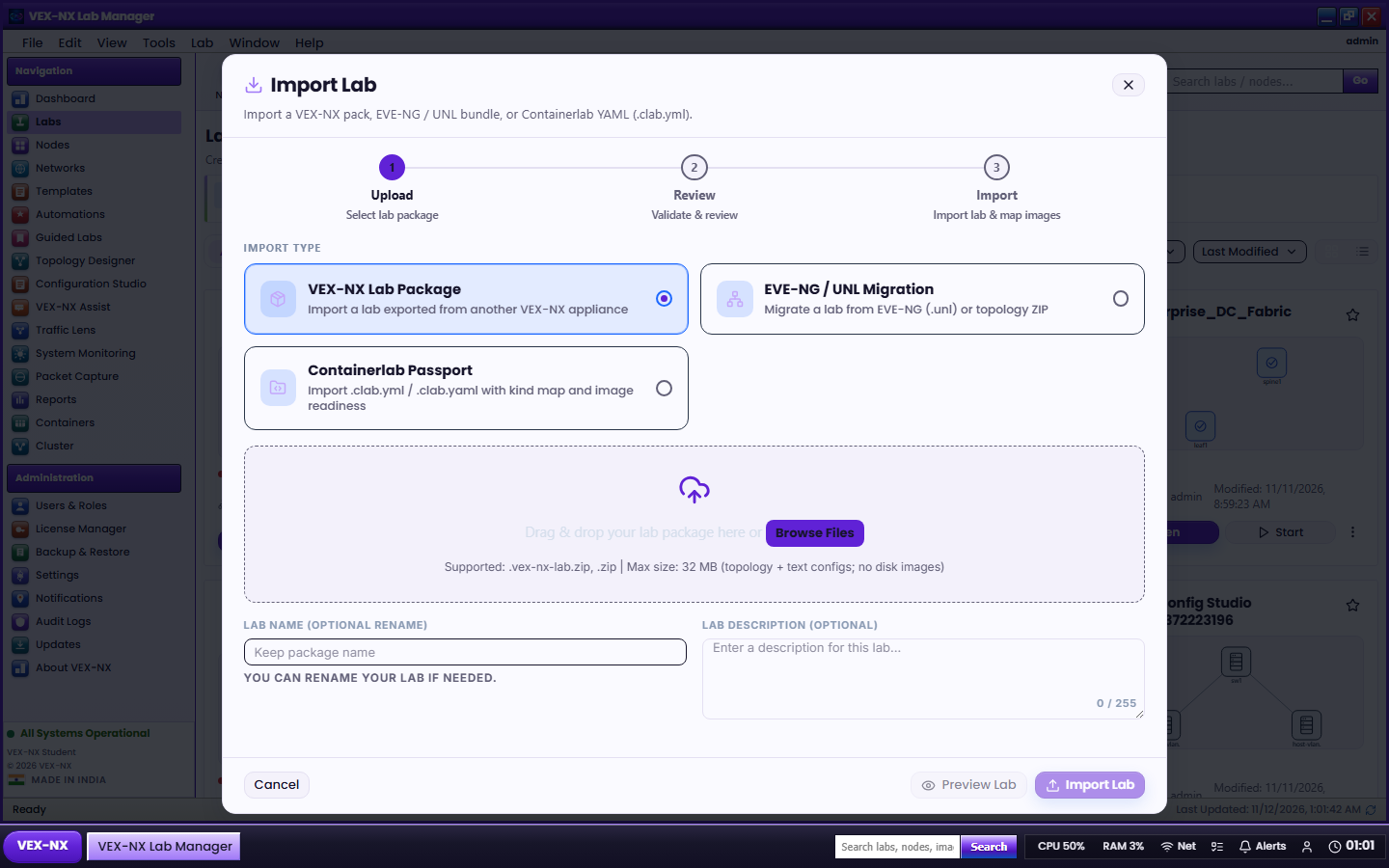
Goal
Restore a lab exported from another VEX-NX appliance as *-vex-nx-lab.zip.
Why Import Lab exists
- Move a lab from a laptop OVA to a classroom server
- Share a finished demo with a colleague
- Backup / restore topology, maps, overlays, and guide without redoing Design
Why images still matter: Packs keep design + configs + guide, not huge disks (size and licensing). After import, re-assign Library images if nodes need them.
Wrong button?
| Your ZIP | Use instead |
|---|---|
*-vex-nx-lab.zip from VEX-NX Export lab pack | Import Lab (this page) |
Topology ZIP with a .unl file | Migrate Lab |
| Pasted running-configs only | Generate Lab |
GUI tutorial
Step 1 - Open Import Lab
- Labs -> Import Lab
- Choose a
*-vex-nx-lab.zippack
| What you see | Import Lab dialog |
| Expected | Preview of nodes / links / maps / guide |
Step 2 - Preview and create
- Review Preview (nodes / links / maps / overlays / guide)
- Optional rename
- Create lab
- Bind missing Library images if warned - Images overview
Recipe: teacher shares week-3 lab
- Teacher: open lab -> toolbar More -> Export lab pack -> gets
week3-bgp-vex-nx-lab.zip - Student: Labs -> Import Lab
- Choose the pack ZIP
- Preview (nodes / links / maps / overlays / guide yes or no)
- Optional rename:
week3-bgp-alice - Create lab
- If a node is missing an image: Images -> Library or Import, then bind on the node
Expected result
- New lab appears under Your labs
- Maps, overlays, and guide (when included) come across
- Warnings in the dialog list anything you should fix (often missing disks)
If it fails
- Preview fails -> confirm the file is a VEX-NX lab pack, not a UNL ZIP
- Lab opens but Start fails -> bind images under Images / node inspector
- Quota exceeded -> delete unused labs or ask an admin
Related
- Toolbars and More menu (Export lab pack)
- Guided Labs
- Sharing labs