Get started
Home and Launch Budget
Use the Home page as your day-1 dashboard: resume work, check capacity, and take the next useful step.
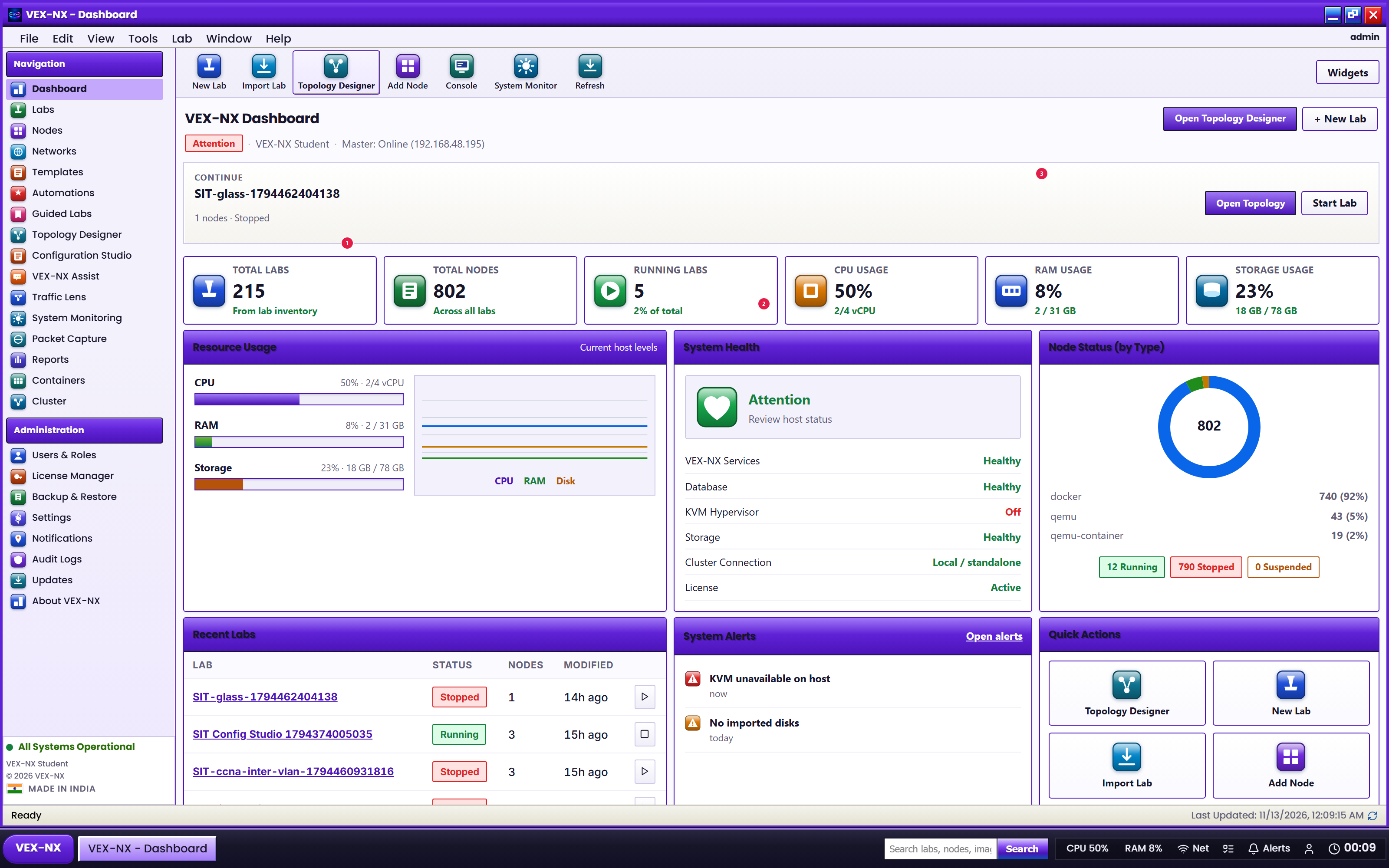
More visuals: Home and navigation in the Visual Feature Atlas.
Goal
Use the Home page as your day-1 dashboard: resume work, check capacity, and take the next useful step.
Why Home exists
New appliances look empty. Home answers: Can I run something? What is broken? What is next?
What you see
| Block | Purpose | Why it matters |
|---|---|---|
| Continue / Get started | Jump back into your last lab, or create the first one | Saves hunting through Labs |
| Focus (next to Continue) | Open the lab maximized | Drawing or projecting |
| Launch Budget | Rough "how many typical labs fit" from CPU / RAM / disk | Avoid Start-all when slots are ~0 |
| KVM / Docker chips | QEMU needs KVM; Guided FRR/Alpine need Docker | Red chips -> fix before vendor labs |
| Sizing guide | Opens sizing docs | Before packing many heavy nodes |
| Next steps | Smart shortcuts (import, labs, catalog, infra) | Home tells you the next click |
| Host checks / Live floor | Problems list, or labs with running nodes | See which class lab is still burning RAM |
| Recent | Last labs by activity | Reopen yesterday's lab in one click |
| Host pulse | Hostname, version, IPs | Tell support exact appliance identity |
Recipe: confirm the appliance is healthy
- Open Home
- Host checks: Docker should be up; for QEMU labs, KVM should be available
- If KVM is red on VMware: fix nested VT-x (System requirements), then refresh
- If Images count is 0 and you need vendor NOS: follow the Import shortcut - or use Guided Labs with Docker seeds first
Recipe: start a Guided Lab from Home
- Open Labs (Next steps or sidebar)
- Guided Labs -> Foundations / Routing + Bronze
- Use this lab
- Operate -> Start -> Terminal
Details: First lab walkthrough.
Story
Day 1, Launch Budget shows Docker OK, KVM OK, Images 0. Home nudges import. You open Guided Labs instead (FRR needs Docker, not vendor disks) and succeed without importing Cisco yet.
Expected result
- Green or clear Host checks for your intended workload
- One click into a lab or Images
If it fails
- Disk full -> free image storage or expand disk (Maintenance)
- Docker down -> wait for phase 2 install;
sudo systemctl status docker - Pressure / 0 slots -> Stop other labs before starting more