Build labs
Create a blank lab
Create an empty lab and open Design so you place every device yourself.
Goal
Create an empty lab and open Design so you place every device yourself.
Why blank labs exist
Not every idea fits a Guided Lab. Blank is for:
- Building exactly the diagram from a workbook
- Mixing vendors your way
- Scratch labs you will throw away
When not to use blank: If you only want "learn BGP in 30 minutes", use Guided Labs instead - blank costs more time.
GUI tutorial
Step 1 - Open Labs
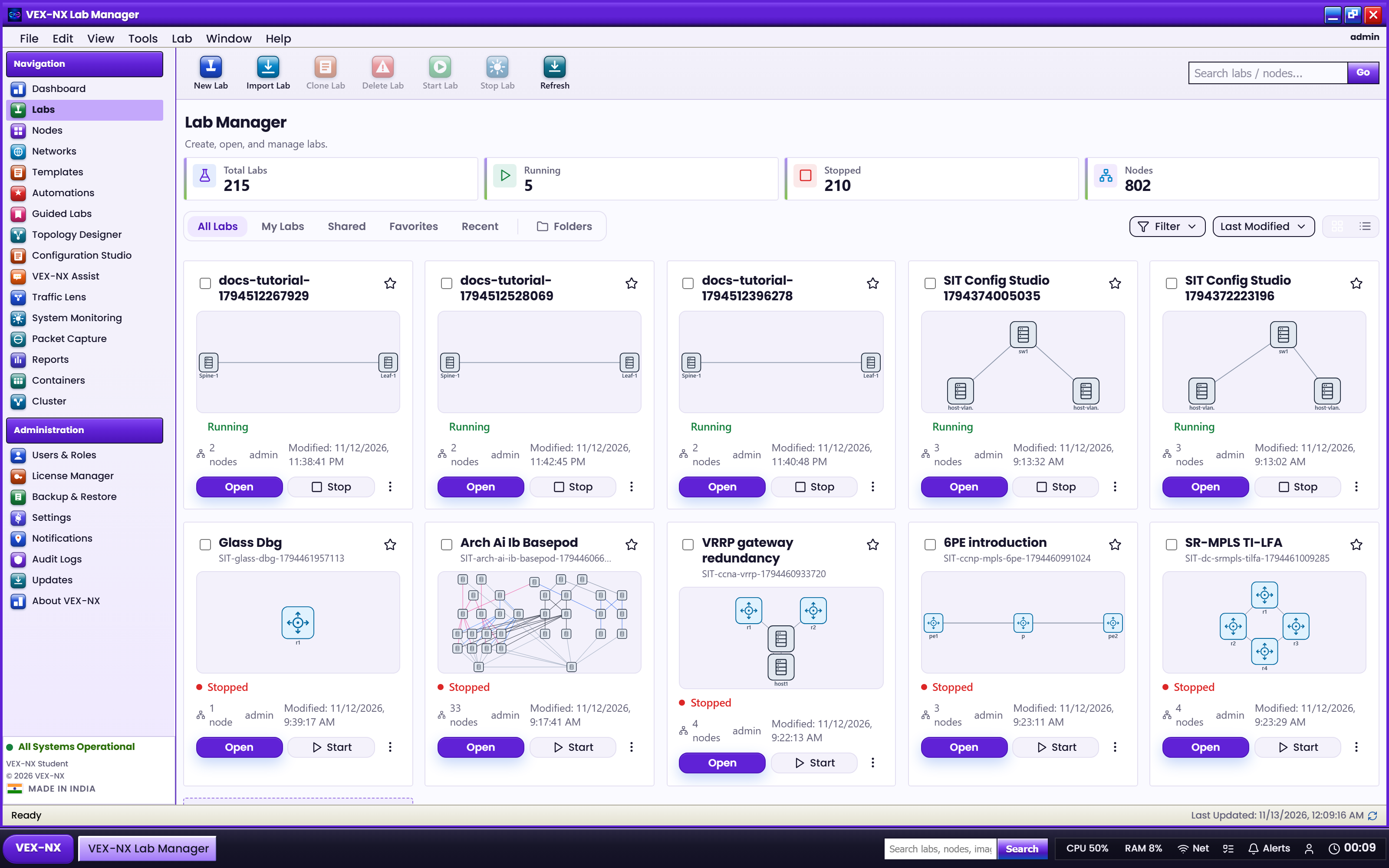
- Sidebar -> Labs
- Confirm you see the lab cards / list and the create actions
Step 2 - Create blank lab
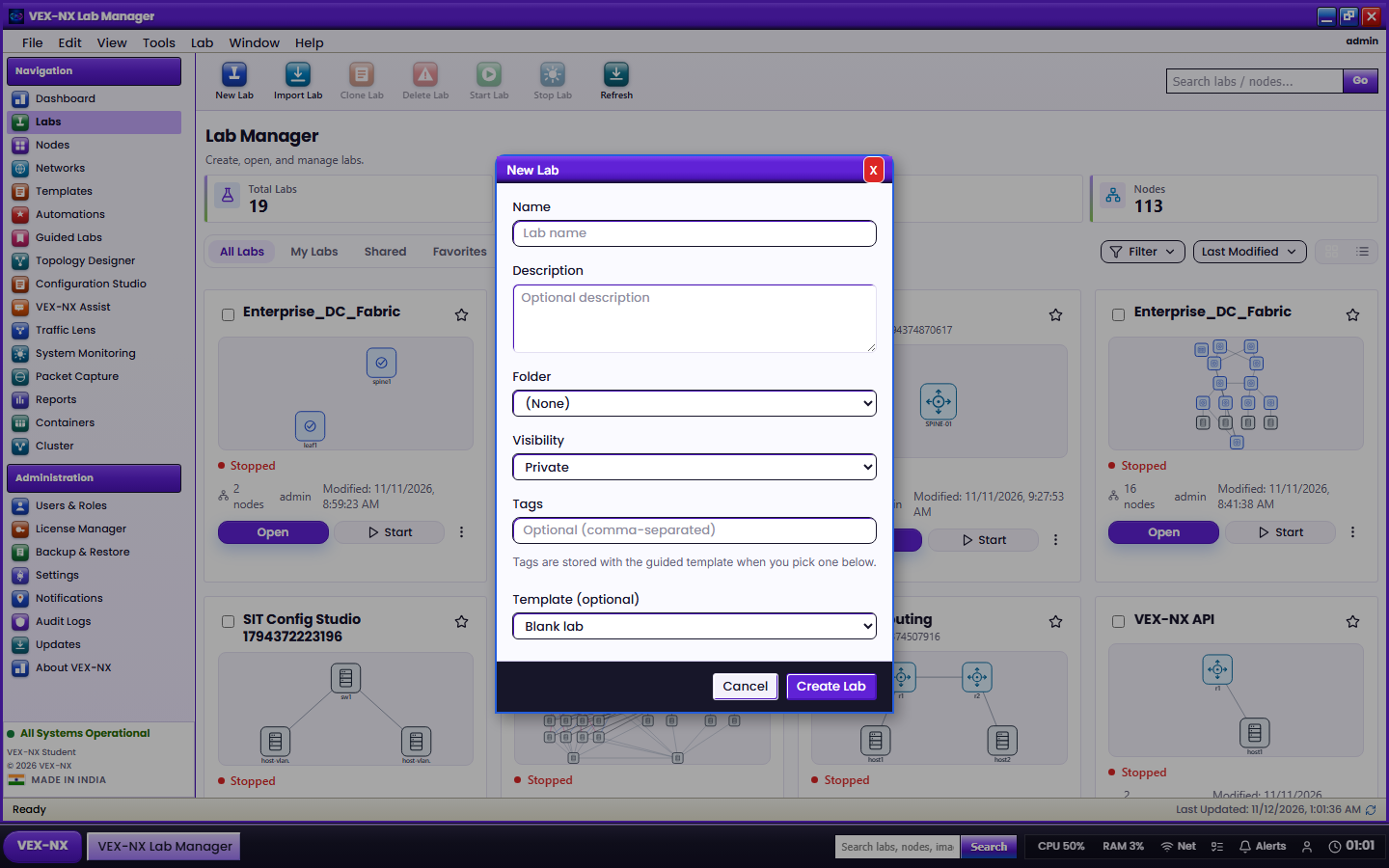
- Click Create blank lab (or New Lab / Blank)
- Enter Lab name (required), example:
campus-core-practice - Optional description
- Submit Create blank lab
| What you see | Create dialog / form |
| Expected | New lab opens on an empty Design canvas |
Step 3 - Land in Design
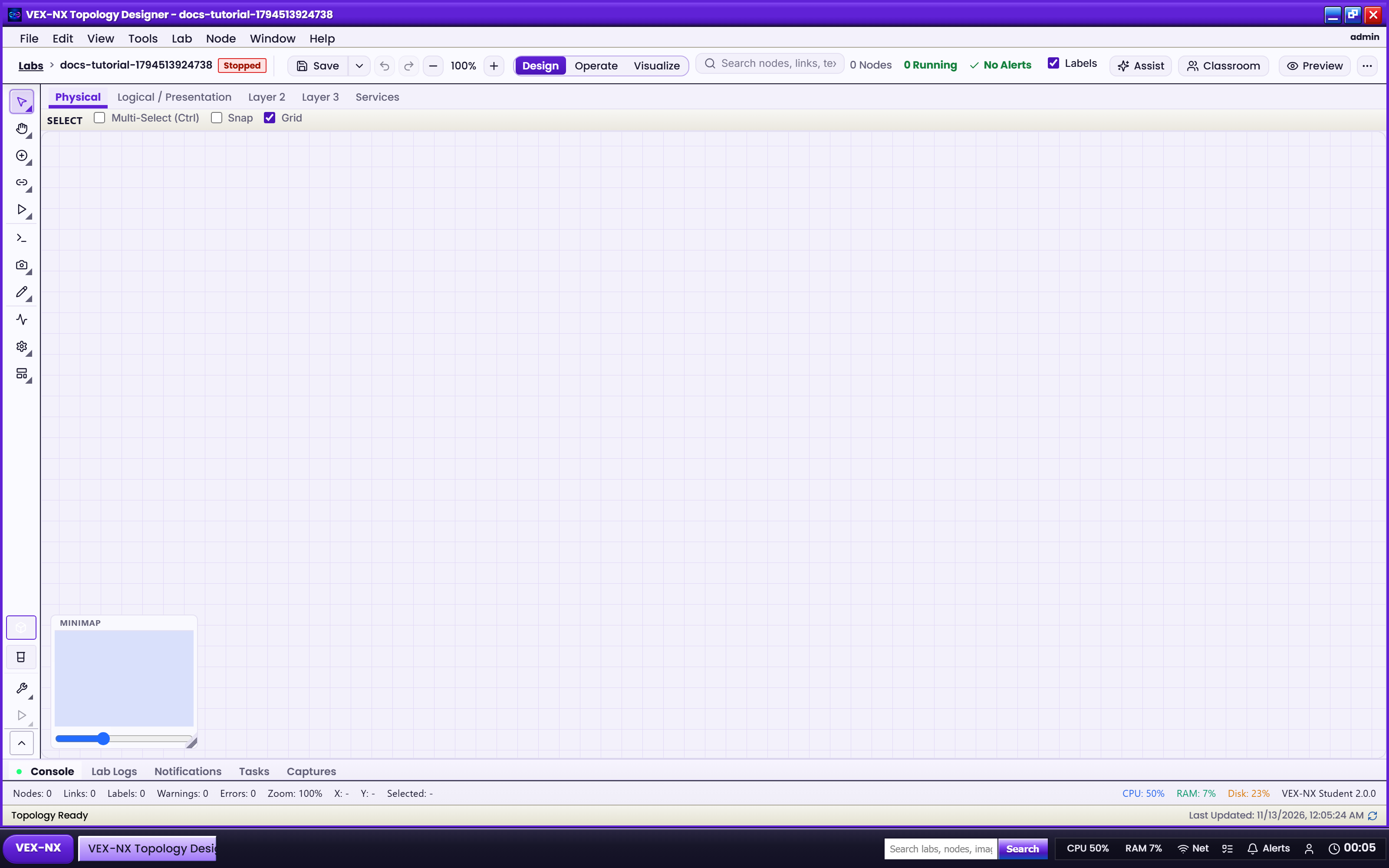
- Confirm mode is Design
- Open the palette and place devices - Design mode
Recipe: campus core from scratch
- Sidebar -> Labs
- Click Create blank lab
- Lab name (required), example:
campus-core-practice - Optional description:
2 routers + 1 switch for OSPF week 1 - Submit Create blank lab
- The workspace opens with focus on Design (
?focus=1)
Then in Design:
- Use the templates picker to add two routers and one switch
- Connect ports between them
- Open ScriptPad for day-0 configs if needed
- Switch to Operate -> Start all -> Terminal
Expected result
- Lab appears under Your labs
- Canvas is empty and ready for drag / add
- Mode switch shows Design / Operate / Visualize
If it fails
- Name required on create or Edit
- Quota / licence limits -> Administration or stop other labs
- No templates in the drawer -> check licence for commercial catalog; Community still includes FOSS Docker templates such as FRR and Alpine